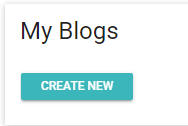
This widget gives any user with access the ability to create a new blog post or edit one of their existing posts. The blog owner can determine who is allowed to view the blog.
This widget has no customizable settings beyond those available to the end-user.
To make a new post, click the Create New button at the top of the My Blogs widget.
A rich text pop-up box will appear.
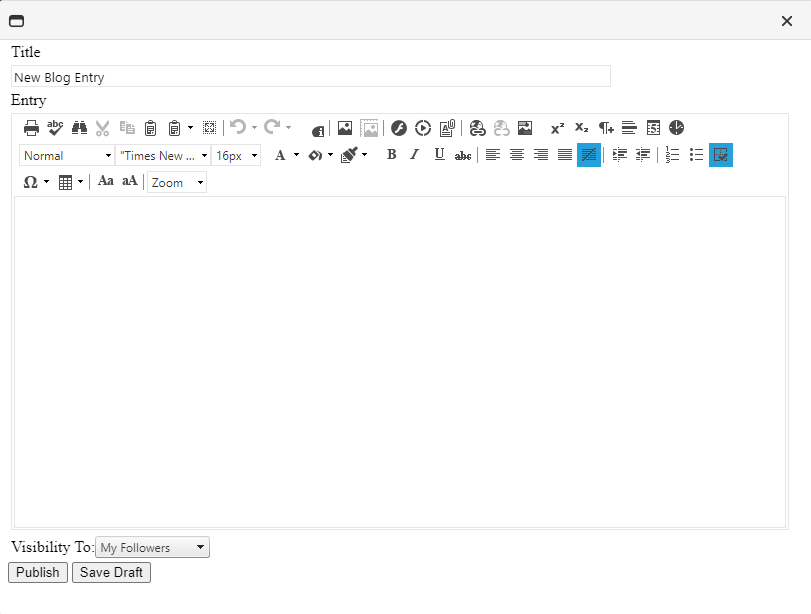
Enter a title for your post.
Enter the text of the post in the Entry box. Attachments can also be added to the post.
Use the "Visibility To" drop-down menu to select who should be able to view your post. Options include:
Click either the Publish button or Save Draft, if you wish to edit more and publish later.
As soon as a post is published, it will appear in the Social Blogs widget of everyone who is in the Visibility level you selected.
To edit an existing post, click on the pencil icon next to the post that you want to edit.
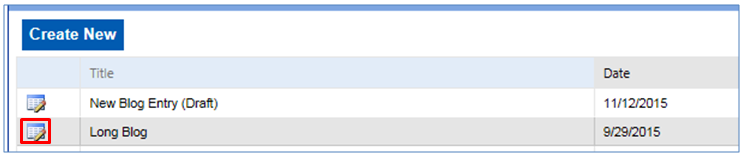
The post will open in the text editor. Make any desired changes in the text and visibility options.
If the post had been previously saved as a draft, you will have the option to continue to Save as Draft, Publish, or Delete it.

If the post was published, you will have the option to Publish the changes or to Delete the entire post.
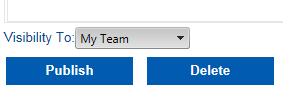
If you choose to Delete the post, you will see a warning message that this action is permanent and cannot be undone. Click OK to complete the deletion.